
This work is licensed under a Creative Commons Attribution-Noncommercial-Share Alike 3.0 United States License.
Copyright © Cay S. Horstmann 2010
This work is licensed under a Creative Commons
Attribution-Noncommercial-Share Alike 3.0 United States License.
Lab 1 Fred Foo
(Scribe) / Becky Bar (Driver)Lab 1 Becky Bar
(Driver) / Fred Foo (Scribe)ls, pwd, cp,
cat, diff commands in their basic forms-classpath option to specify the location of the class
filesThis lab should be completed in two weeks.
Start with this code and make it into a project
lab3, following Step 1 of these
instructions. You'll need this file
again. If you don't have it any longer, download it as
deptdir.txt onto your computer.
Run the program (Run → Run Main Project from the
main menu). In the file chooser, navigate to whereever you saved the
deptdir.txt file, and click on Open.
Look up the phone number of your instructor. (The key is
Phone.)
Then select Remove Entry.
What happens? Why? (You'll need to read through the source code.)
In the AddressBookDemo class, implement the
removeEntry method, using the lookupEntry method
for guidance.
What is the code of your removeEntry
method?
Start the program again as described before and select Remove Entry.
What happens? Why? (You'll need to read through the source code.)
Ok, we'll need to implement the remove method of
ArrayListAddressBook. And then we'll need to test it. Chances are
you aren't getting it right the first time.
In that case you'll run the program, select the directory, click Open, select Remove Entry, find it didn't work, run the program, select the directory, click Open, select Remove Entry, find it didn't work, run the program, select the directory, click Open, select Remove Entry, and on and on and on. That's a lot of clicks.
For now, we will not implement the remove method, but learn how not do click so much.
If you need to repeat the same set of operations many times over, there is a better way: the command line interface. The command line interface is harder to use initially, but it gives you a lot of power.
Look at it this way. If you just want to snap vacation photos, you'll use a
"point and shoot" camera. It requires no training and takes decent pictures.

But if you want your photos to be published in a magazine, you will need a
professional camera. You will need to spend time learning rather technical
concepts such as f-stops and
shutter speeds.

In this lab, you will begin to learn the command shell. You will use the command shell throughout the semester for many tasks.
How to launch a command shell depends on your operating system:
You will get a window that looks somewhat like this. (The exact look depends on your operating system.)
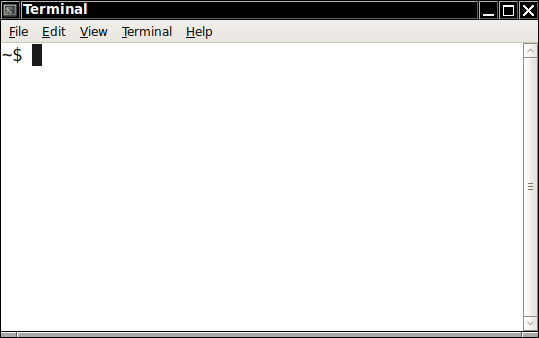
Never seen one of these before? Congratulations—you have just reached level 2.
You type commands into the terminal, and you get responses in plain text.
After each command, you hit the ENTER key. Let's try it out. Type
ls followed by ENTER. (ls stands for
“list”.)
What happens? If nothing interesting happens, try
ls -a instead (i.e. ls, a space, a hyphen
followed by a without any space, and finally ENTER. This shows
all files, including the “hidden” ones.)
When you first open a terminal window, you are in your home
directory. Its location depends on the operating system and your user
name. To see exactly what that directory is, type pwd followed
by ENTER.
What is your home directory?
To see the contents of another directory, use ls followed
by the directory name. Try listing the contents of your desktop directory.
It is located at
| Mac OS X | /Users/firstname/Desktop |
| Ubuntu Linux | /home/firstname/Desktop |
| Windows Vista/7 | /cygdrive/c/Users/Firstname/Desktop
(Always use |
| Windows XP | /cygdrive/c/Documents\ and\ Settings/Firstname\
Lastname/Desktop
(Note the |
Here firstname is the first name of the user in lowercase
(or whatever was supplied as the user name when your laptop was set up).
When you type the directory name, try typing the /, then a
character or two, then hit TAB. For example, to get to the desktop, try
typing De and then the TAB key.
What happens when you hit TAB?
This autocompletion feature is similar to the Ctrl+Space feature in NetBeans, and it is a huge time saver. Experienced shell users almost never type a full file name but use TAB whenever possible. It is faster and it cuts down on errors.
Next, let's find the lab3 NetBeans project. The details depend on where
you unzipped the lab3 folder. If it's on the desktop, try a
directory such as /Users/firstname/Desktop/lab3 or
/cygdrive/c/Users/Firstname/Desktop/lab3. You aren't actually
using the desktop, right? If you are organized, it's in some place such as
/Users/firstname/cs46b/lab3 or
/cygdrive/c/Users/firstname/cs46b/lab3. Ask for help if you
can't locate it.
In which directory is your project? What happens when
you type ls followed by that directory?
Another useful feature of the shell window is command line recall.
Hit the ↑ and ↓ arrow keys a few times. What happens?
Now use the ↑ and ↓ arrow keys to recall the command that
lists the lab3 directory, then add /build/classes
(without a space) after lab3.
What files are listed in that directory?
These are the compiled files of your application.
The cp command copies one or more files. We will use its
simplest form here. We want to copy the deptdir.txt file to
the current directory.
Where did you put the deptdir.txt file?
Give the full path name.
Now type
cp -v /path/to/deptdir.txt .
Replace /path/to with the actual path to
deptdir.txt. (For me, that was
/home/cay/Downloads/deptdir.txt.)
Type a space and a period after the full path.
The period indicates the current directory (the one that is printed by
pwd). You are copying the file to the current directory.
The -v indicates the “verbose” option, in which
you get some feedback what happens.
What feedback did you get?
Now type
ls
What happens? Why?
We will soon be modifying our deptdir.txt file. Let's
make a copy to be safe. Copy deptdir.txt to
deptdir.original.txt in the current directory, using the
cp command.
What command did you use?
javac -version followed by ENTER in the shell window.
That's javac, not java.
What happens? It might work or not. If you get a version number, what is it? If you get an error message, what is it?
Under Windows, you might get a “command not
found” error message. In that case, you need to use the full path
name for the javac.exe program, which is a bit tedious. Type
/cygdrive/c/Pr, then TAB to get it completed to
/cygdrive/c/Program\ Files, then add /java/jdk
and hit TAB again to get a completion somewhat like
/cygdrive/c/Program\ Files/java/jdk1.7.0_01. If tab completion
doesn't find it there, look instead in /cygdrive/c/Program\ Files\
\(x86\). (Note that there is a \ before every space and
before every special symbol.) Once you found the JDK directory, add
/bin/java -version. The entire thing is something like
/cygdrive/c/Program\ Files/java/jdk1.7.0_01/bin/java
    -version
. Fortunately, you only need to enter it once since you can
always recall it with the ↑ key.
Now type java -classpath followed by the name of the full
path to lab3/build/classes and AddressBookDemo.
For example,
java -classpath /home/cay/cs46b/lab3/build/classes AddressBookDemo
Be careful with the letter case in AddressBookDemo.
Don't type this from scratch. Hit ↑ until you find the
ls command from Step 3. Add a space and
AddressBookDemo. Then hit HOME (Ctrl+A on the Mac), erase the
ls and add java -classpath. Hit ENTER when you
are done.
With Windows, you now run into an unhappy issue. You
have to know which programs are Cygwin programs and which are not. The
ls program is a Cygwin program and takes Unix style path names
(starting with /cygdrive/c). The java program is
not a Cygwin program, and it does not understand /cygdrive/c.
Instead, you need to type a path such as
C:/Users/cay/cs46b/lab3/build/classes. Technically, you are
supposed to use backslashes (\), but as it happens,
java will accept slashes. So, before hitting ENTER, make sure
you replaced /cygdrive/c with C: on Windows.
What happens when you run the
AddressBookDemo?
Now run the program again, using only two keystrokes.
What are the keystrokes?
You need a professional text editor for this lab. Windows Notepad or Mac TextEdit will not suffice. Some students have a professional text editor that they like and know, but more often than not, it turns out that they don't actually know it all that well. So, even if you love your text editor, you'll need to install the one that we use in the lab.
The professional text editor that we use in this lab is called Emacs. It is available on all major operating systems, so you won't have to learn another editor if you switch operating systems—which most professional programmers need to do at least occasionally. It is very powerful and has a huge set of extensions.
“Emacs outshines all other editing software in approximately the same way that the noonday sun does the stars. It is not just bigger and brighter; it simply makes everything else vanish. ”—Neal Stephenson
If someone tells you that Emacs is old-fashioned and hard to use, don't listen—modern versions of Emacs have menus and dialogs and require no special training.
sudo apt-get install
    emacs
on Ubuntuc:\Cygwin\home\yourname. Verify that it got to the right
place. Open a Cygwin terminal and type ls. You should see a
directory starting with emacsemacs &
emacs-*/bin/emacs &
Select Options -> C-x/C-c/C-v Cut and Paste (CUA) and Options->Save Options. At the bottom of the window, in a ”status line”, Emacs tells you that it saved the options in a file.
What is the name of this file?
.emacs. Note the period (.) before the filename.
If there is no such file, hit the following key combination instead:
[Control-X][Control-F]~/.emacs[Enter]
That is, hold down Control and X, let go of X but not of Control, type
F, let go of both, then type the eight characters ~/.emacs and
then hit the Enter key. (If you already have a ~/ after
hitting [Control-X][Control-F], you can just enter the six characters
.emacs and then Enter.)
At the end, add the following lines:
(prefer-coding-system 'utf-8-unix)
(setq indent-tabs-mode nil)
(setq require-final-newline t)
Just copy from this page and paste it in with Ctrl+V.
Select File -> Save from the menu.
What does the status line at the bottom of the window say?
~/.bash_profile (except for Ubuntu where it is
~/.bashrc. If you are annoyed by this inconsistency, open a
terminal, select Edit -> Profiles -> Default -> Edit -> Title
and Command, then check “Run command as login shell”. Then the
terminal reads ~/.bash_profile)
Note the dot (.) before the letter b. It is a
part of the file name.
The ~ character denotes the “home directory” of
the current user.
If you can't find the file, you need to select File->Visit New File from the menu instead.
What is the contents of the file?
What is the prompt in your system?
Close the window when you are done.
export PS1='\w\$ '
exactly as it appears here, as a string of eighteen characters, including two spaces, two backslashes, two single quotes, and two uppercase letters. Just copy/paste it.
Save the file. Open another terminal window.
What prompt do you get now?
PS1 is an environment variable, a
variable that controls the behavior of the shell. PS1 sets the
prompt string. The \w sequence denotes the path to the current
directory. The \$ sequence yields a $ for a non-administrator,
a # for an administrator. (This is useful to alert you when
you are logged in as an administrator.)
javac or
java programs, some installations require you to specify the
full path to the program such as /cygdrive/c/Program\ Files\
\(x86\)/java/jdk1.7.0_02/bin/javac (The exact path and version
number may be different on your computer.) You can solve this problem by
adding the path to the bin directory to the
PATH environment variable. Add something like this to your
.bash_profile file.
export JAVA_HOME=/cygdrive/c/Program\ Files\ \(x86\)/java/jdk1.7.0_02
export PATH=$JAVA_HOME/bin:$PATH
Remember to edit the path and version number.
Add the entry to .bash_profile. Save the file. Open a new
command shell. Type javac.
What output do you get?
If you still get a message that the command cannot be found, see a lab assistant or your instructor.
emacs so you don't have to type emacs-*/bin/emacs
to start it. Find the exact name of your Emacs directory and add something
like this to your .bash_profile file.
export PATH=$PATH:~/emacs-24.1/bin
Remember to edit the version number.
Open a new command shell. Type emacs &.
What happens?
If you use Mac OS X or Linux, skip this part.
c:\Cygwin\home\yourname
as your home. Here is how.
First, find out where your browser downloads files. It's usually
something like c:\Users\yourname\Downloads.
Now open a Cygwin shell and issue the command
ln -s /cygdrive/c/Users/yourname/Downloads downloads
In the path name for the download directory, replace c:
with /cygdrive/c and all backslashes (\) with forward slashes
(/). If the path to your download directory contains spaces, add a
\ before each space.
As you type each path segment, type the first few characters, then the Tab key. That triggers autocompletion, which makes it easier to type the correct path name.
Type
ls downloads
What files do you see?
Do you see the files in your browser's download directory, such as
setup.exe? If not, type rm downloads and try the
ln -s command again.
lab3.zip in your downloads
directory from the previous step? If not, download this
file again. It should now show up if you run ls downloads.
Now run
mv downloads/lab3.zip .
jar xvf lab3.zip
What happens?
ls lab3. What files and directories do
you find?c:\Cygwin\home\yourname\lab3. Run the project once. Just
cancel when the dialog comes up.
Type ls lab3 again. What files and
directories do you find?
cd lab3
java -classpath build/classes AddressBookDemo
What happens?
Note how you no longer had to type painful path names. Life is better in
~ than in /cygdrive/c/Users/yourname.
If you got to this point, you can stop and complete the lab in the second week.
Remember our goal--we don't want to click through the GUI when we are testing. Fortunately, the program will switch to a console UI if we specify the name of the file from the command line:
java -classpath /path/to/classes AddressBookDemo deptdir.txt
When main starts, args[0] is the first
argument after the program name, i.e. deptdir.txt.
If you've ever wondered what the String[]
args is good for in public static void main(String[]
args), now you know...
How does the AddressBookDemo program
switch between GUI and console mode?
java -classpath /path/to/classes AddressBookDemo
Again, replace the /path/to with the actual path.
What happens? Why?
Ok, we need to supply a file name.
java -classpath /path/to/classes AddressBookDemo deptdir.txt
What happens?
For now, type option 5.
Run the console program again (with two keystrokes :-))
Select option 2, then enter the name Horstmann. Then select
option 5 to quit:
1: Add/Change Entry 2: Look Up Entry 3: Remove Entry 4: Save Directory 5: Exit Enter command: 2 Enter name: Horstmann Enter key: Phone Value: (408) 924-5085 1: Add/Change Entry 2: Look Up Entry 3: Remove Entry 4: Save Directory 5: Exit Enter command: 5
Now we don't even want to type the inputs! Let's make a file
input.txt containing the four lines
2 Horstmann Phone 5
Follow these instructions to make the file:
| Mac OS X | touch input.txt
(Annoyingly, the Mac text editor refuses to open a file that doesn't
exist. |
| Ubuntu Linux | gedit input.txt |
| Windows | Notepad input.txt |
Put in the four lines, save the file, and quit the text editor. Now run
java -classpath /path/to/classes AddressBookDemo deptdir.txt < input.txt
As always, remember to hit ↑ and just add the <
input.txt to the end of the command line.
The < symbol means “read keystrokes from a
file”, or, more formally “redirect System.in to a
file”.
Now edit input.txt to add a lookup for Diaz.
What is the content of input.txt now?
What happens when you run the program with this
input.txt?
Now we are ready to do some serious test automation. We want to test that adding an entry works correctly. Here is the plan:
What input.txt file tests this
scenario?
Now let's capture the output. Run this command.
java -classpath /path/to/classes AddressBookDemo deptdir.txt < input.txt > output.txt
Remember to hit ↑ and just add the > output.txt to
the end of the command line...
What is the contents of output.txt? How do
you know?
Another way of checking contents of a file is the cat
command. Type
cat output.txt
What happens?
Here is a good reason for saving the output. It often happens that you make a change to a program, and you want to run a test case again to check that it still works. Save the output file
cp -v output.txt expected.txt.
What is the contents of expected.txt? How
did you check it?
Run the program again and capture its output in
output.txt. Then compare the two:
diff output.txt expected.txt
The diff command compares two files and prints their
differences. If there aren't any, it prints nothing.
Run the AddressBookDemo program, and the
diff command as described. What happens? Why?
Change input.txt by adding a 4 before the
last line, i.e.
... 2 Diaz Phone 4 5
With the new input.txt, run the
AddressBookDemo program and the diff command as
described. Then do it again. What happens? Why?
We'll do more test automation when we implement removal in the next lab.
For each of these commands, give a one-sentence
description what they do: ls, pwd,
cp, cat, diff.
if (x > y)
{
y = x;
}
is actually
if (x > y) \ty=x; }
where \t denotes a tab.
When the file is displayed, the tab is shown as some number of spaces. How many spaces? That's the problem—nobody agrees. NetBeans thinks it should be 4, Notepad thinks it should be 8.
Here is how you can see the tabs. Load the file into Emacs and run
Alt-X hexl-mode Enter
That is, type Alt-X, then hexl-mode in the status line, then Enter.
Never seen one of these? Congratulations, you've reached level 3.
You are seeing the encoding of each byte in the file. To the right, you see the characters, and if you look carefully as you move the arrow keys, you can see how they correspond.
For example, move the cursor on the lowercase b in public
on the right hand side. In the hex display, you will see 62.
That's the code for b.
What is the code for lowercase c? How do you know?
Look for spaces (with code 20) and tabs (with code
09). What is the first line of code in which you see each?

How do you turn off tabs in Emacs? Hint: Look into your
~/.emacs file.
Don't use tabs. There is no advantage and only pain. I am not the only one who thinks this. Some people say that you should only use tabs and never spaces. In theory, that would work—it's the mixture of tabs and spaces that causes the problem. But how confident are you that you and your collaborators won't ever mix them? BTW, I didn't say “Don't use the Tab key”. The Tab key is fine. Just tell your editor to insert spaces when you press it.
0A. In Windows, however, two characters are
expected: a "carriage return" with code 0D and a newline.
What's a carriage return?
Remember these?

In the olden days, you had to move the "carriage" back to the left of the paper, and then advance the paper one line. Or, you could not advance the paper and print over the same line multiple times, for example to strike out characters.
Just in case you ever need to run Windows on a typewriter, every line
must end with 0D 0A.
Look at ExhibitB.txt in hexl-mode. What do you see at the end of each line?
And they are not the only culprit. Look at this file in hexl-mode. What do you see at the end of each line?
sh ExhibitC.txt
What happens?
0D that it
doesn't expect. You'd think that it could figure out how to ignore them,
but it doesn't.
To fix this, run
dos2unix ExhibitC.txt
(DOS is the precursor to Windows.)
Now look at the file in hexl-mode again. (Close the old one and reload it.)
What happens?
sh ExhibitC.txt
What happens? Why does it work now?
Always use Unix-style line endings. The Emacs configuration that I gave you takes care of that. And don't use Notepad.
ExhibitB.txt so that Notepad won't
choke?What is the UTF-8 encoding for é?
What is the ISO 8859-1 encoding for é?
cat ExhibitD.txt cat ExhibitE.txt
Which one looks correct? (This depends entirely on how your system is configured.)
Always use UTF-8 for your files unless you have an
ironclad reason not to do so. (“I didn't know” isn't such a
reason.) The Emacs configuration that I gave you makes UTF-8. When you read
a file in a Java program, always open the scanner with UTF-8: new
Scanner(file, "UTF-8"). Otherwise, your program will use the
character encoding of the grader's operating system, and you don't know
what that is.
import java.util.*;
public class Test
{
public static void main(String[]
    args)
{
Scanner in = new Scanner(System.in);
String line = in.nextLine();
if (line.startsWith(args[0]))
System.out.println("match");
else
System.out.println("no match");
}
}
What do you expect to happen when you run
java Test Bahrain < test1.out
test1.out, the program will run and print something.)test1.out file in Emacs with hexl-mode. What are
the first five bytes?xxxx xxxx | xxxx xxxx <-byte1-> <-byte0->
There are two possible ways of saving these two bytes in a file
Which one do you think is more reasonable?
Why does that help with reading a file with a 16-bit encoding?
Test.java so that the
last line reads:
System.out.printf("no match: %x\n" , Integer.valueOf(line.charAt(0)));
Run
java Test Bahrain < test1.out
again. What happens?
Scanner class?