At home, before coming to this lab, you should install Cygwin, following these instructions , with one modification: In step 8, select Devel, and then also select the openssh program inside Net.
There is no need to email your answers to this lab since I will be able to see yor work in CVS.
1. Double-check that SSH is properly installed and that you have the right CVS password. (The CVS password is the same as your Oslo login.)
Open a bash shell in Cygwin/Linux/Mac OS X. We will use bash for this entire lab. You can do the work in the DOS shell if you like, but you are on your own with modifying the instructions, setting paths, etc.
Type
ssh username@oslo.cs.sjsu.edu
where
username is the name that you received in a recent email. Then
use the password to complete the login. Leave this window open. You will
again need it in step 5.
2. Open a second bash shell window. Double-check that CVS is installed. In the bash shell, type
cvs
You should get a screen with usage instructions.
3. On your local machine, make a directory such as ~/CS160/lab1 and unzip this zip file . Compile and run the application.
javac -source 1.4 AnimationTest.java
java AnimationTest
4. Now check in to CVS. First, execute
export CVS_RSH=/usr/bin/ssh
export CVSROOT=:ext:username@oslo.cs.sjsu.edu:/home/cvsroot/sandbox/username
Here, username is your user name for Oslo, such as paris5 .
NOTE: To avoid tedious typing, make a file cs160.profile file. Run
source cs160.profile
to set the variables.
Then run
rm *.class
cvs import -m "Initial import" lab1 vendor release
The options have the following meanings:
| -m "..." | message (must be supplied for every import
and commit) |
| lab1 | project name (may be different from current
directory) |
| vendor | vendor tag (must be supplied with
import--we use a dummy value) |
| release | release tag (must be supplied with import--we use a dummy value) |
5. Now you have imported the project, and it exists on the server. On the server, run
ls /home/cvsroot/sandbox/username/lab1
(I will type all server-side commands in blue.)What do you find?
6. As far as CVS is concerned, the project does not yet exist on the client. Back up the old directory and check out the version from CVS. (These commands are in black to indicate that you type them on your client machine.)
cd ..
mv lab1 lab1.bak
cvs checkout lab1
cd lab1
Note that checkout is executed from the parent directory. For all other commands, you want to be in the working directory.
This creates a lab1 directory parallel to the lab1.bak directory (which you can discard once you verified that the checkout was successful). What is the contents of this directory? What is the significance of the special files?
7. Make a change to the source: In ArrayPanel.java, change g2.fill(bar) to
{
  Color oldColor = g2.getColor();
  g2.setColor(Color.RED);
  g2.fill(bar);
  g2.setColor(oldColor);
  g2.draw(bar);
}
Compile and run.
Now commit your changes:
cvs commit -m "bars in red"
What message did you get?
How does CVS know which files to commit? (It is important that you understand this.)
8. On the server, execute
cd /home/cvsroot/sandbox/username/lab1
vi ArrayPanel.java,v
Use the PAGEUP/PAGEDOWN keys to page through the file. What commands in the file show the change?
Type
Esc :q!
to exit vi (that is escape colon cue wow).
9. Sometimes, you accidentally erase a file. With CVS, you can get it back.
On the client, execute
rm ArrayPanel.java

cvs update
What happened?
How does CVS know which files to update? (It is important that you understand this.)
10. Sometimes you make a change that you regret. With CVS, you can get back an earlier version.
Run
cvs update -r 1.1 ArrayPanel.java
What happened?
11. Export project
Sometimes, you want a clean copy of the files in the repository, without those funny CVS subdirectories (for example--hint, hint--when turning in work to your instructor). In that case, use the export command. Try it out:
mkdir ~/CS160/export

cd ~/CS160/export

cvs export -D now lab1
What is the contents of export/lab1? In what way does it differ from lab1?
12. For the following exercises, you should work in your teams. The team leader imports the project into /home/cvsroot/sandbox/teamname/lab1
Subsequently, all team members check out the
project.
13. Team member1 makes a change in file 1 and commits it.
Team member 2 calls cvs update and opens AnimationTest.java. What happened?
15. Member 1 makes a change in another file and commits it.
Member 2 also makes a change in that file and calls update.
What happens? Be sure to look into the file Sorter.java
16. Member 2 removes the markers from Sorter.java and calls cvs update again. What happens?
17. Member 1 makes a change in a third file and commits it.
Member2 makes a change in the same file and also commits it.
What happens?
18. How are you supposed to resolve this conflict?
It is a bit tedious that you have
to enter the SSH password every time you execute a CVS command. If
you use a GUI client (such as Eclipse), it will do that for you. You
can also create an SSH key pair. Follow these steps. Simply hit
Enter after each ssh-keygen prompt.ssh-keygen -t rsa Generating public/private rsa key pair. Enter file in which to save the key (/home/cay/.ssh/id_rsa): Enter passphrase (empty for no passphrase): Enter same passphrase again: Your identification has been saved in /home/cay/.ssh/id_rsa. Your public key has been saved in /home/cay/.ssh/id_rsa.pub. The key fingerprint is: 64:e3:64:4c:fb:e0:f7:30:6d:85:fe:50:b5:d6:f7:6e cay@oslo.cs.sjsu.edu scp ~/.ssh/id_rsa.pub username@oslo.cs.sjsu.edu:~ ssh oslo.cs.sjsu.edu mkdir ~/.ssh chmod 700 ~/.ssh cat ~/id_rsa.pub >> ~/.ssh/authorized_keys2 chmod 600 ~/.ssh/authorized_keys2 rm ~/id_rsa.pub exitNow you should be able to log in and use CVS without having to type your password again. |
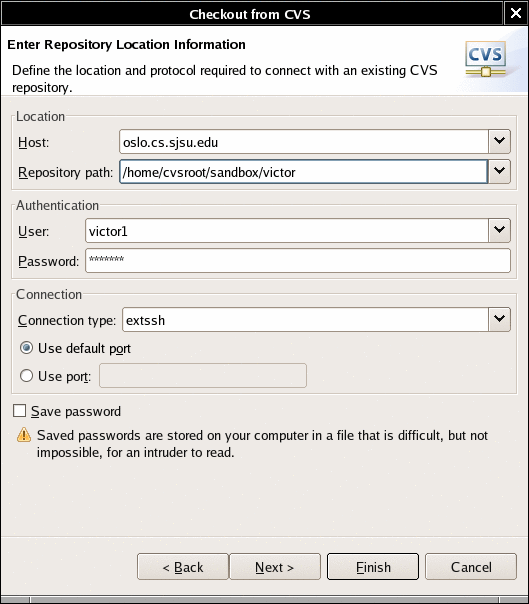
19. (Optional) If you run Eclipse,
| TIP: If you are tired of the
Windows command shell window, launch the Cygwin setup program and
install rxvt. (It is under the Shells tree.) Then, start
cygwin in the normal way and launch rxvt -e bash. This
launches a rxvt shell window, running bash. (By
default, rxvt runs the archaic ash shell.)
rxvt isn't going to win in any beauty contest, but you can
copy and paste. It uses the X-style selection behavior where
anything that you highlight with the mouse is automatically copied.
Then use SHIFT+INS to paste it into
the command line. To copy into another program (such as your text
editor), use the normal copy command. For greater visual beauty, I used the following command to launch the shell:
rxvt -fn "Lucida Console-18" -cr red -e
          bash
You can also set the background colorrxvt -fn "Lucida Console-18" -cr red -bg pink -e bashThat is useful if you want to visually highlight a shell window, for example the server shell in this exercise. If pink is too hot, try mistyrose or another color name. Here are some tips for further tweaking. 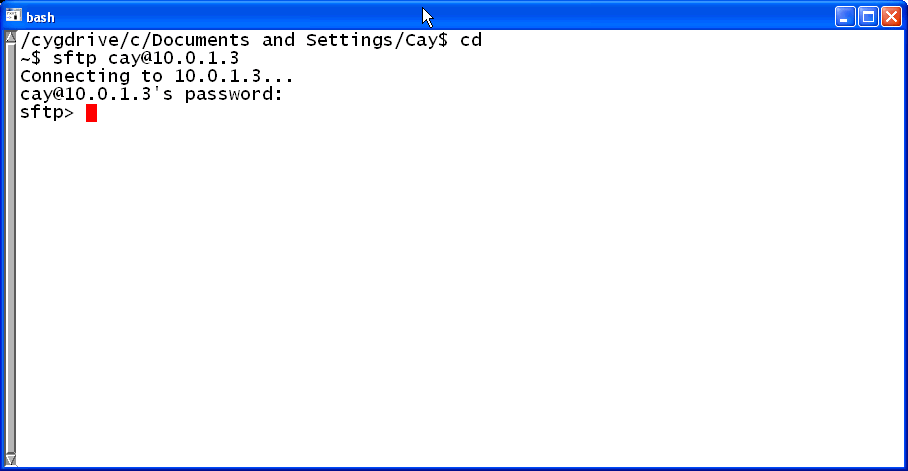 You can do this lab by running Cygwin in the Windows shell, but I thought you might like to know that there is an alternative. |